Scan your repository
Connect a GitHub repository, run a static scan that never executes your code, and read the components, issues and history it finds.
On this page
A scan is the quickest way to see your app the way the design system sees it. It reads your files, finds your components and their variations, and lists design issues by priority. It never runs your code.
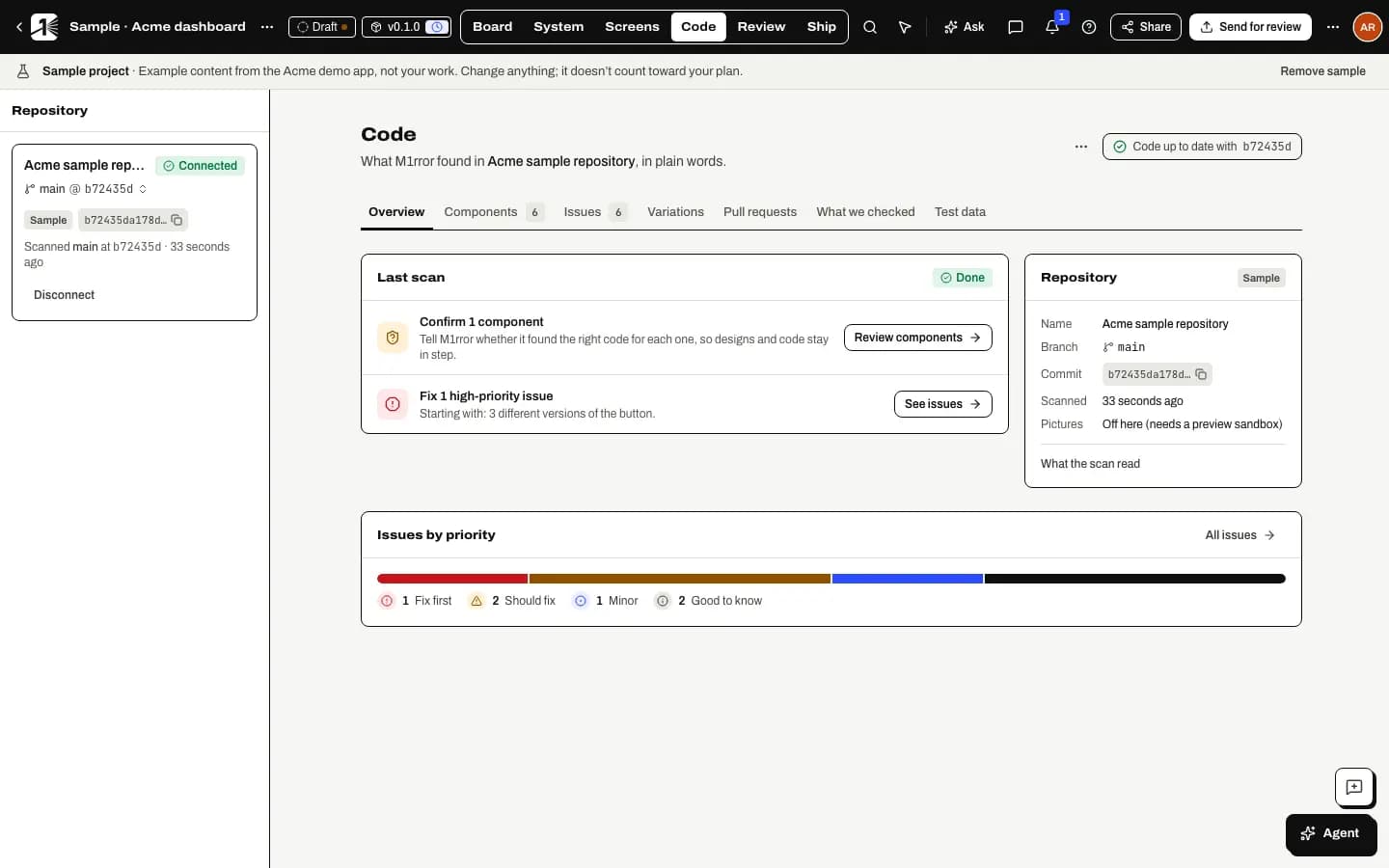
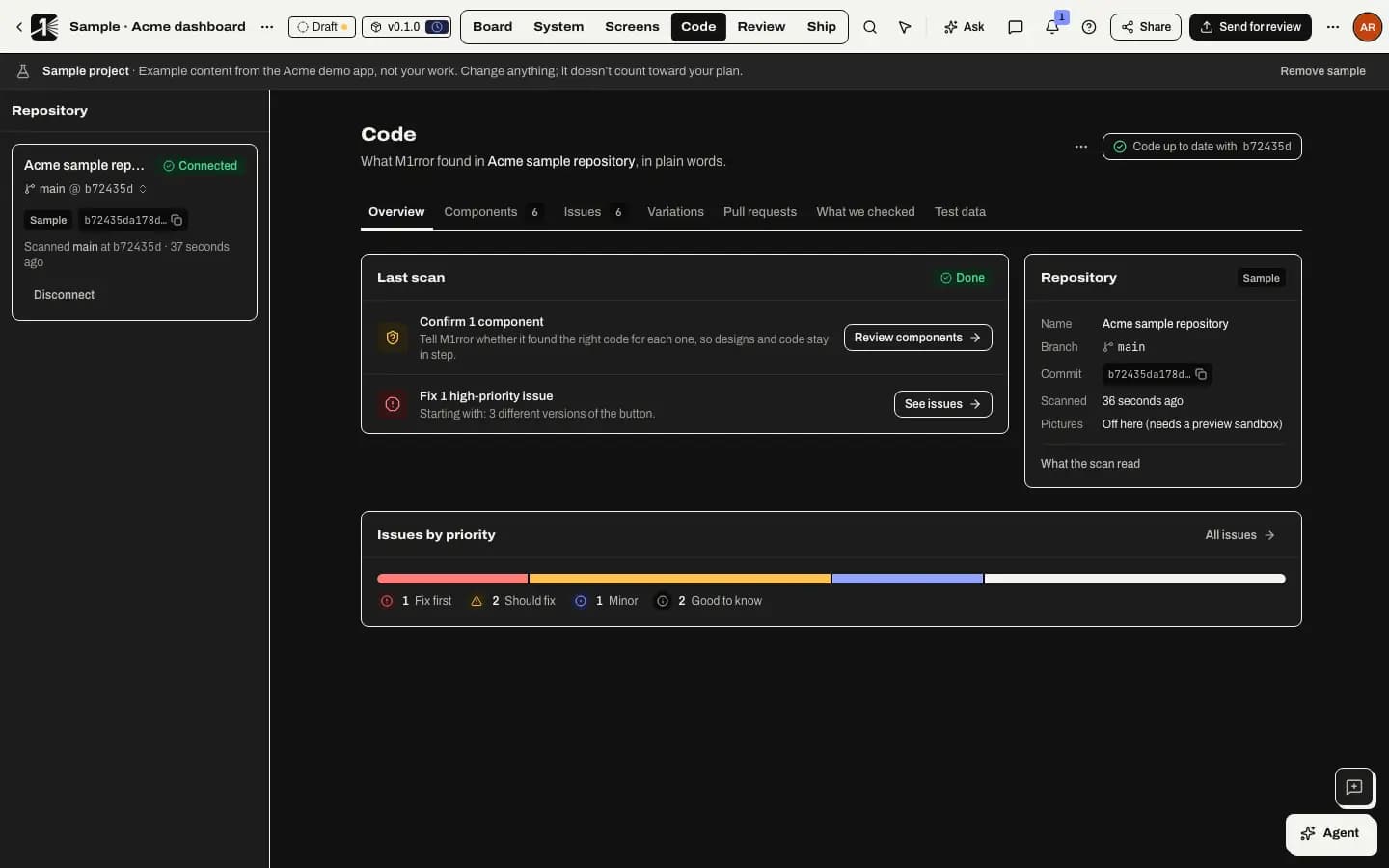
Run a scan
Connect a repository
Open Code mode. With no repository connected it shows Connect a repository and what happens next. Search your GitHub repositories and pick one; if the M1rror GitHub App isn't installed on that account yet, select Install GitHub App (see the GitHub App). To try it without your own code, choose Use the Acme sample.
Choose the branch and scan
Tell M1rror which branch holds your app, then select Connect and scan. M1rror clones it with a short-lived, read-only token limited to that one repository.
Read the overview
Overview shows when the last scan ran, Issues by priority and Your components. Detected components also appear in System mode for you to confirm.
Scan again after changes
Select Scan again after you push changes. Earlier scans stay available from the Scan selector, so you can compare.
Cost
A scan uses 5 usage units. See usage units and credits.
Next
- Turn on pull request checks to catch drift in new code.
- Start your design system from your code.
Last updated
Edit this page on GitHub