Compare release pictures
See what changed between two releases, or between a release and your draft, as pictures of every screen compared pixel by pixel. The pictures are free and never change.
On this page
A list of changed design values tells you what changed. A picture shows you what it looks like. When a release is sent for review, M1rror takes a picture of every screen in it. In Review you can then compare those pictures with an earlier release, or with your current draft, and see exactly which screens changed and by how much.
What gets pictured
When you send a release for review, M1rror draws each screen in the release:
- in its Default state, with its text as written in English;
- at three sizes: Phone (390 × 844), Tablet (768 × 1024) and Desktop (1280 × 800).
The pictures are bound to that exact release. They are stored once and never edited, so the picture a reviewer approved is the picture you can look at later.
Taking pictures is free: it uses no usage units.
Some screens can't be pictured, and M1rror lists them rather than leaving them out without a word:
- a screen that was only found in your code and has no design here yet (see import screens from your code);
- screens past the first 60 in a release;
- a screen the renderer couldn't draw.
Compare two versions
Open the release
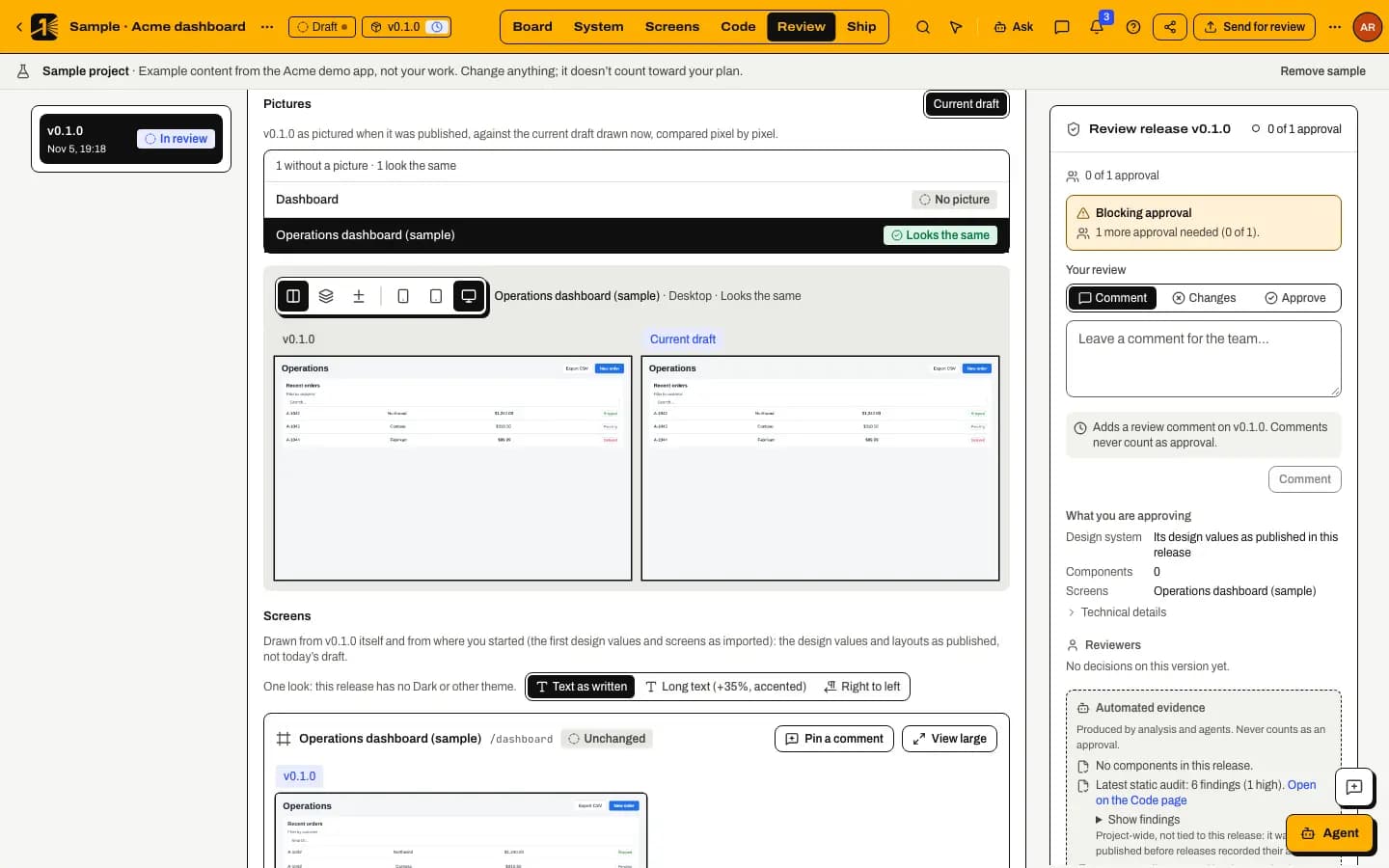
Open Review mode and select a release. Its comparison is titled Compared with … and names the version it is compared with. Use Compare with to choose another release.
Choose what to compare the pictures with
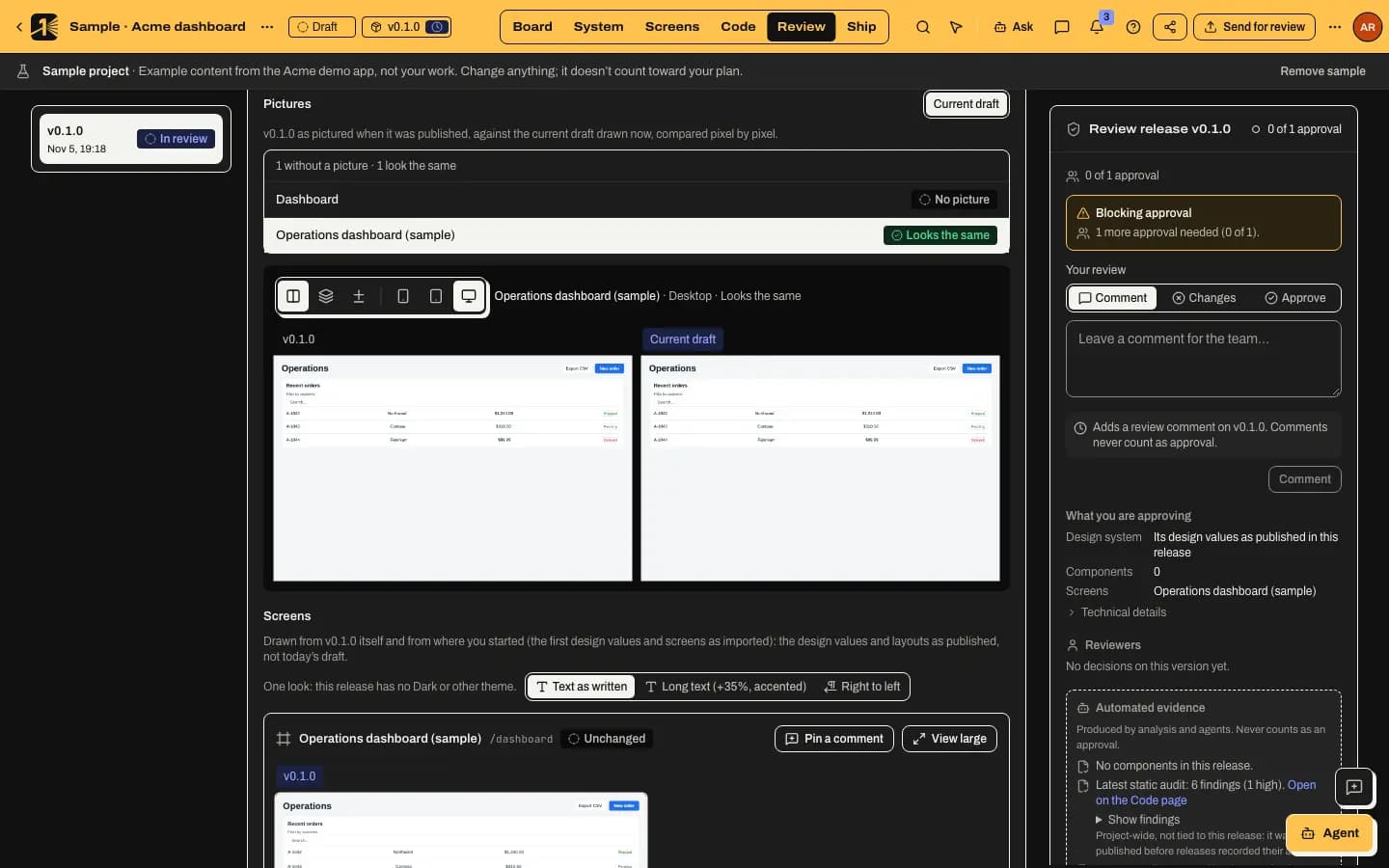
In Pictures, choose the earlier release, or Current draft to compare the release with what you are working on now. The draft is drawn when you ask, and is free too.
Read the list of screens
Each screen is marked:
- N% changed: the share of the picture that differs;
- New or Removed;
- Looks the same;
- No picture, when one side has no picture of it.
Changed screens come first, the biggest change at the top. A change smaller than the project's noise threshold (by default 0.5% of the picture) counts as Looks the same, so a moved pixel of anti-aliasing doesn't show up as a change. Use the arrow keys, Home and End to move through the list.
Look at the change
Pick how to see the selected screen:
- Side by side: the two versions next to each other.
- Overlay: one on top of the other, with a slider for how much of the newer version shows.
- Highlight differences: the changed pixels in strong pink over a faded copy, with the changed area outlined.
Switch between Phone, Tablet and Desktop to compare each size.
Releases sent before pictures existed
A release sent for review before M1rror kept pictures says No snapshot for v… and offers Take pictures now. The pictures are then drawn from what that release recorded, and they say they were taken later. This is free.
In the implementation pull request
When a build of an approved release passes its checks, the draft pull request gets a Pictures section. It names the approved version, lists the changed screens with the share of each that changed, and links to the comparison in M1rror. The pictures are the target the code should reach, not a test of the code.
If something goes wrong
- "Pictures of v… can't be taken on this server." Pictures need a headless browser on the server that does the drawing. On deployments without one, nothing is drawn and nothing is stored. The live previews of each screen, further down the comparison, still work.
- "Taking its pictures failed: …" The message says why. Select Take pictures now to try again.
- "You can't see these pictures." Comparing pictures needs permission to view releases and the draft. Ask a workspace administrator.
- "No screens to compare." Neither version has a screen with a design of its own, for example when every screen was only found in code.
What pictures don't cover yet
- Only the Default state is pictured. Loading, empty, error and other states, other languages and dark themes are not. You can still look at those in the live previews.
- The pictures are drawn by M1rror's own renderer from the design, not by your app's code.
For coding agents
Agents connected over MCP with the full tool set can read the same results: taste_get_release_snapshot, taste_request_release_snapshot, taste_prepare_draft_pictures and taste_compare_release_pictures. See MCP tools.
Last updated
Edit this page on GitHub