Approval policies and team review
Decide how many people must approve a release, stop authors approving their own work, ask for a decision on every screen and pin feedback to the exact version reviewed.
On this page
When more than one person reviews a design, the team needs to agree on what "approved" means. An approval policy writes that down once for the workspace: how many people must approve, whether authors can approve their own release, whether every screen needs its own decision and whether open comments hold things up. M1rror then applies it to every release, in the app and on the server, and Ship refuses a release that isn't approved under its policy.
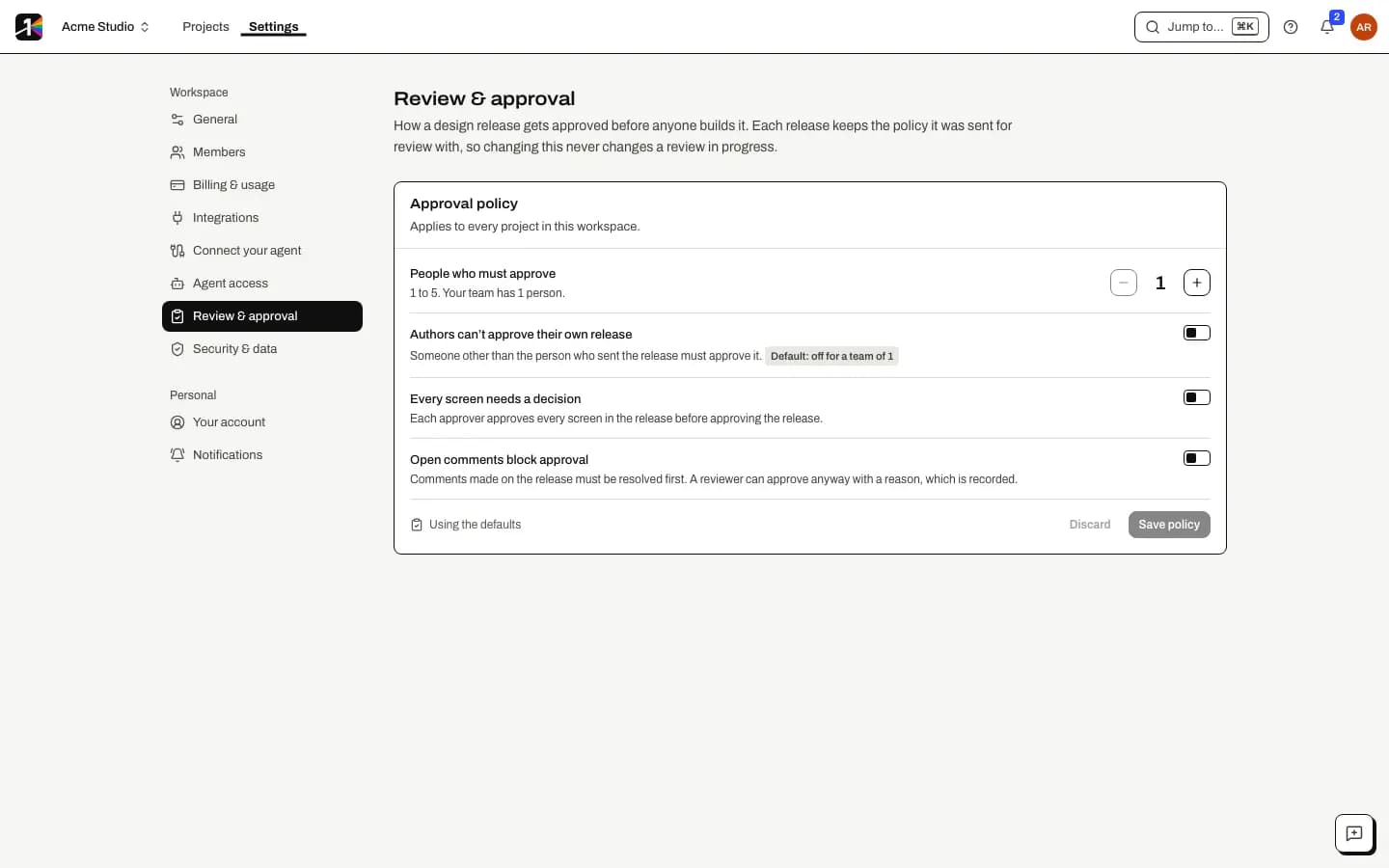
Set the approval policy
Open Review & approval
Go to Settings › Review & approval. Everyone in the workspace can read the policy. Only workspace administrators and owners can change it; everyone else sees Only workspace admins can change the approval policy.
Choose the rules
Setting Default What it does People who must approve 1 How many different members must approve, from 1 to 5. Authors can't approve their own release On for a team of 2 or more, off when you work alone Someone other than the person who sent the release must approve it. Every screen needs a decision Off Each approver approves every screen in the release before approving the release. Open comments block approval Off Comments on the release must be resolved first. A reviewer can approve anyway with a reason, which is recorded. If fewer people could approve than the policy asks for, the page says so: releases wait until more people join.
Save the policy
Select Save policy. The policy applies to every project in the workspace, for releases sent from now on.
Review screen by screen
In Review mode, each screen in a release has its own decision under its picture:
- Approve <screen> records your approval of that screen.
- Request changes asks you What needs to change on <screen>? (required). You can also request changes on the whole release.
A screen's status reads Approved by …, Changes requested, or Needs a decision when the policy requires one (No decision yet when it doesn't). If you change your mind, your latest decision replaces your earlier one.
Each decision is bound to that exact release. The author is notified, for example Ana approved Home in v0.1.0.
Approve the release
Approve the release as before: choose Approve and say What did you check? The release is approved only when all of these are true:
- enough eligible people have approved it;
- no request for changes is still open;
- every screen has its approvals, if the policy asks for that;
- no open comment is left uncovered, if open comments block approval.
The review shows the policy in one line (for example 2 of 2 approvals) and lists anything still in the way, with links.
Approve anyway
When open comments block approval, the approval form asks Open comments block approval. Why approve anyway? (required, recorded). The button then reads Approve v… anyway. Your reason, and the comments it covered, are stored with the approval.
Resolve a request for changes
A request for changes blocks approval until it is resolved. The reviewer who asked, or a workspace administrator, selects Resolve…, writes How was it settled? and selects Resolve request. Sending a new release also replaces the old request, along with the old release.
Pin feedback to the version you reviewed
In Review, select Pin a comment on a screen, then click the spot you mean. You can also place the pin from the keyboard: Enter puts it in the centre, the arrow keys move it, and Shift with an arrow moves it further. Add markup to the comment if it helps.
The pin belongs to that screen, state and size in that release. When a newer version is sent, earlier pins stay exactly where they were made, drawn dashed and labelled with their version, for example on v0.1.0. They are never moved onto a layout they weren't made on.
Guests on a review link for a release can pin comments the same way, on the release their link shares.
Who can do what
- Reviewers, administrators with Can also approve releases, editors with the Reviewer role and owners can approve and request changes.
- Authors can't approve their own release when the policy says so. The button explains: You can't approve your own release.
- Administrators set the policy and can resolve anyone's request for changes.
- Agents can read the review and the policy, but never decide. Per-screen decisions, resolving requests and changing the policy are for people only.
- Guests approve on their own terms; see guest approvals.
If something goes wrong
- "You can't approve your own release." The policy asks someone other than the sender to approve. Ask a teammate to review it.
- Ship says the release isn't approved, even though some people approved it. Ship checks the release against its own policy. Open the release in Review to see what is still missing: an approval, a screen decision, an open request for changes or an open comment.
- "This release changed since you opened it. Reload before deciding." Reload the page, then decide again, so your decision matches what you saw.
What it doesn't cover yet
Decisions and pins are per screen. Components in a release are approved with the release as a whole.
See also send a release for review and members and roles.
Last updated
Edit this page on GitHub