Quickstart
Create a free account and workspace, start your first project, add a reference and send a first version for review, in about ten minutes.
On this page
This guide takes you from a new account to a design that someone else can review. You don't need a card, a repository or any design files: a sentence about what you're making is enough.
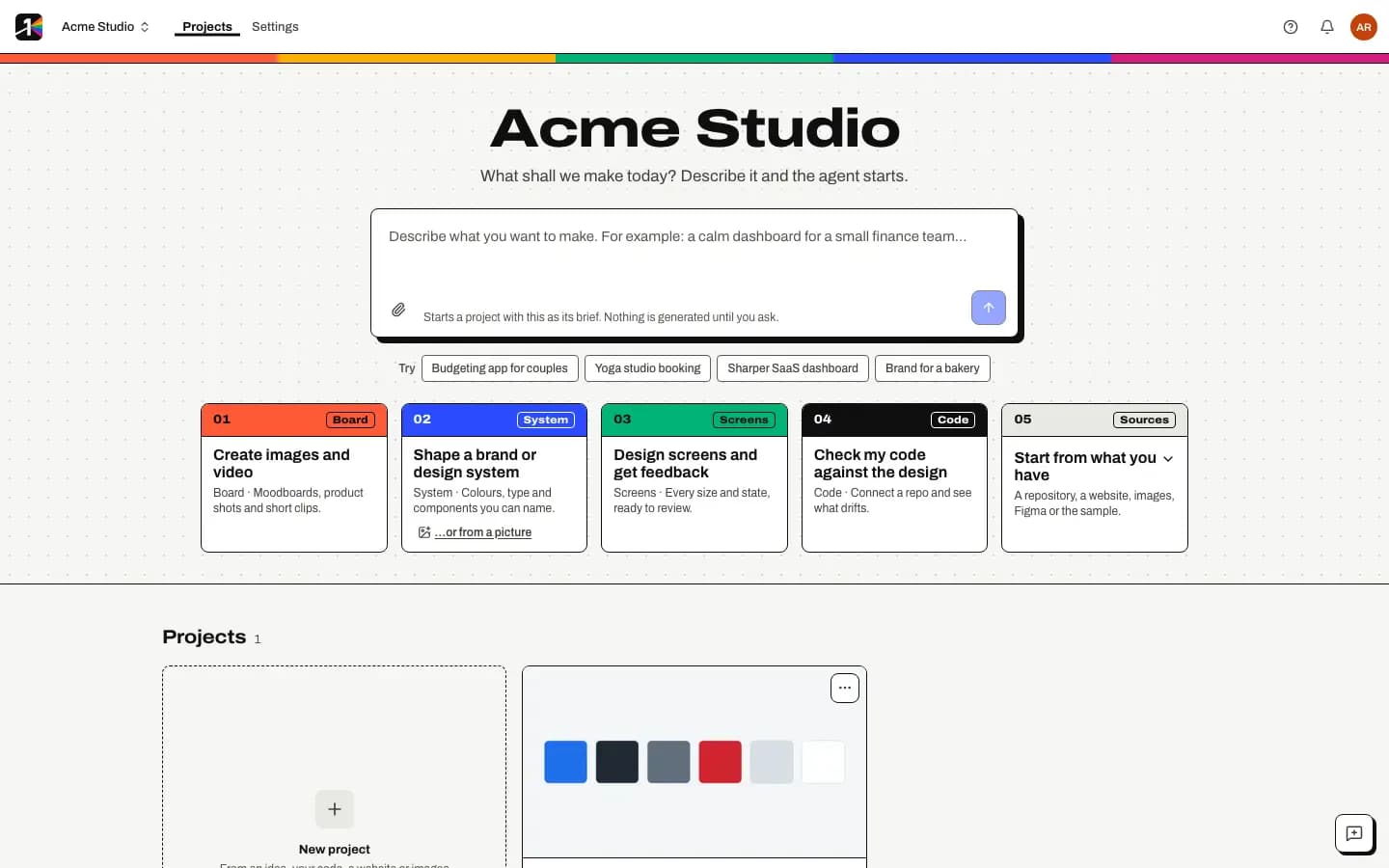
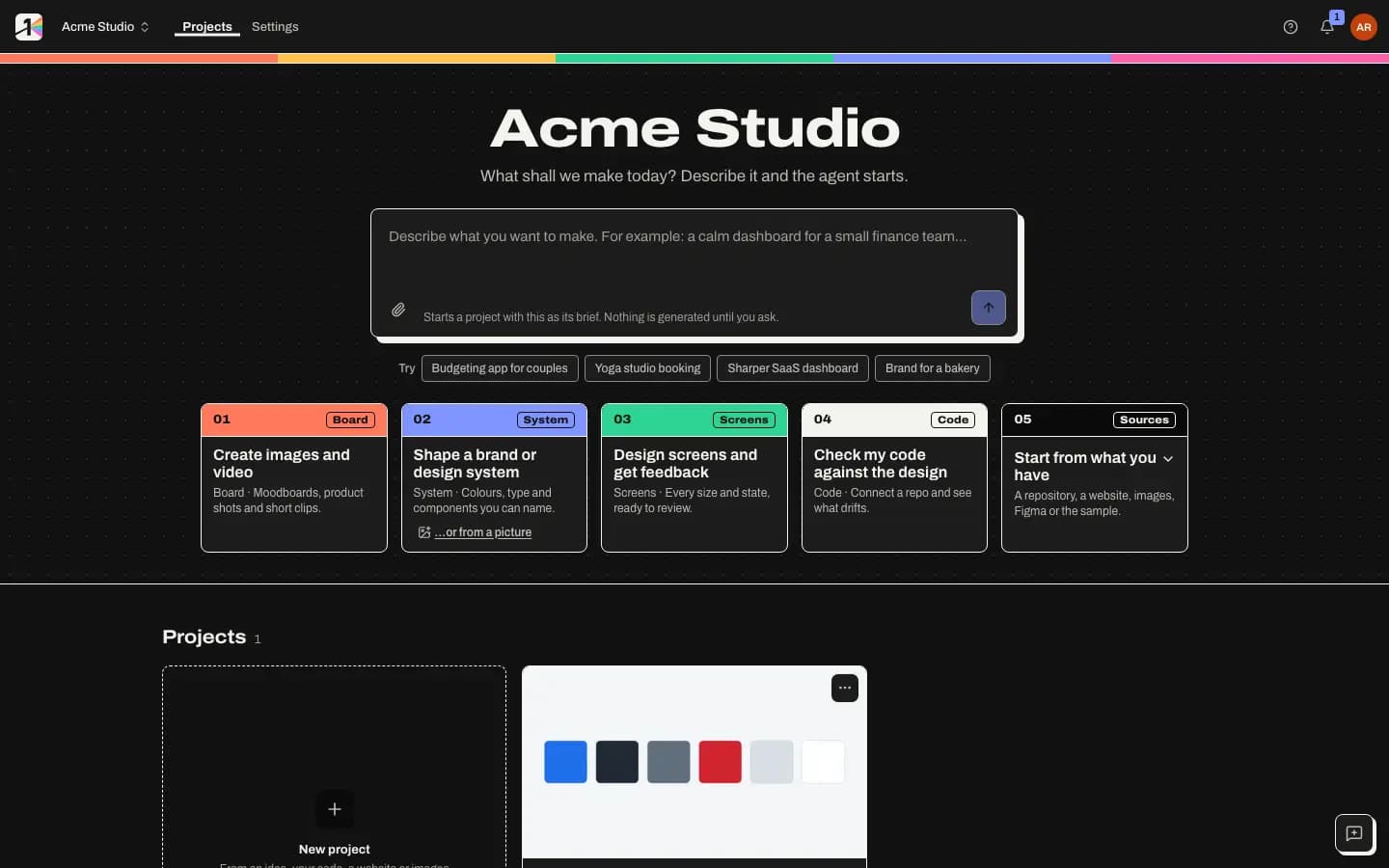
From sign-up to your first project
Create your account
Go to Create your account and enter your name, email and a password, then select Create account. The Explore plan is free and needs no card.
Name your workspace
A workspace is your team's space: members, billing and projects live there. Enter a Workspace name (for example your company or studio) and select Create workspace.
Tell M1rror what brings you here
The welcome screen asks one question so it can open the right place first:
- Shape a brand or design system opens System on the Colour page.
- Design screens and get feedback opens Board with References.
- Check my code against the design opens Code.
- Create images and video opens Board with Media.
You can add your role, or select Skip for now at any point.
Start a project, or explore the sample
Choose Start my own project, give it a Project name and optionally describe what you're making, then select Create project.
If you'd rather look around first, choose Explore a sample project. The sample, Sample · Acme dashboard, comes with a design system, screens and a sample repository, and you can remove it later from the project menu (Remove sample project).
Add a first reference
In Board mode, open Add reference and choose Upload images, Paste a link or Capture a web page. References are private to your workspace. See Capture a website as a reference for the capture options.
Set your colours and design a screen
In System mode open Colour to set your brand colours, or start a system from a reference. Then in Screens mode select New screen, name it and add layers. Each screen has states (Default, Loading, Empty, Error, Denied and Session expired); see Design a screen and its states.
Send it for review
Select Send for review in the top bar. This freezes the current draft as a new version (a release) and asks reviewers to look at exactly that version. To include someone without an account, create a guest review link.
The Get started checklist
Get started in the top bar shows how far you've got, as a small ring and a count. Open it to see the checklist. It ticks itself off as you do real work: Add a reference, Set your brand colours, Design a screen, Ask for a review, Connect GitHub, Generate an image and Connect a coding agent. You can hide it, and bring it back from the Help menu (Get started checklist).
People you invite to an existing workspace see a shorter list instead: open a project, leave a comment, review a release and choose your notifications.
Product tours
The first time you open each area (the workspace home, Board, System, Screens, Code, Review, Ship, the design agent and Settings) a short tour points at the real controls and says what they do. Use Next and Back, or the arrow keys, and Skip tour or Esc to leave it. Each tour starts by itself only once.
- To replay a tour, open Help (?) › Take the tour and pick one. Show tours again lets them all start by themselves again.
- To stop tours starting by themselves, turn off Show tours when I visit a new area in Settings › Your account. You can still replay them from Help.
Tours don't start for people who only review or view, or when you arrive from a Get started link.
Needs you
On the workspace home, Needs you lists what is waiting on you, and appears only when something is:
- releases you can decide and haven't yet, with Review;
- invitations nobody accepted, with Resend (only if you manage members);
- the latest failed design check or run of yours.
A few show at a time, then and N more. Each project card also shows its latest release (Approved, Awaiting approval, or Drafting when there is nothing in review) and its last check or run, with repeats grouped, for example 8 checks passed.
Next steps
- Learn the vocabulary in core concepts.
- Invite your team. Reviewers and viewers join free.
- Connect GitHub to scan your code and check pull requests.
Last updated
Edit this page on GitHub